
table of content
- How AI Improves Mobile App Performance Before and After Launch
- What Good Mobile App Performance Looks Like
- What to Fix Before Launch to Improve Mobile App Performance
- How AI Helps You Release Without Risk
- What to Track After Launch With AI
- Android vs. iOS: What’s Different
- Common Mistakes When Using AI for App Performance
- Conclusion
- FAQs


Improve Mobile App Performance with AI: What to Fix Before Launch and What to Track After
How AI Improves Mobile App Performance Before and After Launch
Most apps don’t lose users because they lack features. They lose users because the first screen takes too long to load, a tap freezes for a second, or the app crashes on a mid-range phone that nobody has tested. That’s why improving mobile app performance starts well before release and continues long after launch.
AI has become useful in this process in a very practical way. It won’t magically speed up a slow app, but it can analyze a profiler trace in minutes, group thousands of crash reports into a handful of causes, and identify reviews that mention lag. Developers still handle the fixes. AI simply reduces the time needed to figure out what needs attention.
Performance issues rarely come from one major mistake. Instead, they build up from smaller problems: a request that runs twice, an image decoded at full size, or an SDK that starts before it’s needed. Identifying the cause often means carefully reviewing large amounts of data, which is where AI can save time.
Take a checkout screen that needs several seconds to load. The team can see it’s slow, but not why. A developer exports the network log for that screen and asks AI to list every request made during loading, including the number of calls and response sizes. The analysis reveals that the same cart request runs several times because three different components fetch the cart separately. The developer confirms this in the network inspector, loads the cart once, and shares the data across the screen. Finally, the developer measures the loading time again on the same device to check whether the change helped.
This guide explains how AI can help improve mobile app performance at every stage: what to fix before launch, how to release safely, and what to monitor once real users start using the app. If you’re working with a mobile app development company, these are the questions worth asking at each stage.
What Good Mobile App Performance Looks Like
Performance isn’t measured by a single number. Users experience it through speed, smoothness, and stability, while developers measure it using several key metrics. Before fixing anything, agree on what to measure because you can’t improve what you haven’t measured.
| Metric | What it tells you, Google’s published threshold, and a suggested target |
| Cold start | How long users wait before the app becomes usable. Google: A cold start taking 5 seconds or longer is considered excessive. Suggested: Aim for about 2 seconds or less on a mid-range phone. |
| Warm and hot start | How quickly the app returns when it is already in memory. Google: Warm starts taking 2 seconds or longer and hot starts taking 1.5 seconds or longer are considered excessive. Suggested: Keep both comfortably below these thresholds. |
| Screen load time | How quickly a screen displays content after a tap. Google: No universal published threshold. Suggested: Set a limit for each key screen based on your measured baseline. |
| Rendering and hangs | Whether scrolling and animations feel smooth. Google: Android vitals tracks slow rendering and related performance issues. Suggested: Avoid visible stuttering on key screens during profiler tests. |
| User-perceived crash rate | The percentage of daily users who experience at least one crash. Google: The overall bad-behavior threshold is 1.09%. Suggested: Set your own limit well below this threshold. |
| User-perceived ANR rate (Android) | The percentage of daily users who experience an app that stops responding. Google: The overall bad-behavior threshold is 0.47%. Suggested: Set your own limit well below this threshold. |
| Network response time | How long API calls take, especially on slow connections. Google: No universal published threshold. Suggested: Set limits for individual endpoints using your baseline. |
Some of these metrics are tracked automatically. Android vitals provides crash, ANR, and other quality data from real devices through Google Play. If an app crosses a bad-behavior threshold, Google Play may reduce its visibility and show a warning on its store listing. As a result, stability affects not only the user experience but also how easily people discover the app. Google Play evaluates these metrics over a 28-day period, so the effects of a poor release can remain visible for weeks.
Establish a Baseline and Compare Every Release
A baseline is a record of your app’s current performance under repeatable conditions. Start with a small set of test devices: one older phone, one mid-range phone, and one recent model. Then select three to five key flows, such as launching the app, logging in, and completing checkout.
Run each flow several times, record the median and slowest results, and save the measurements alongside the build version.
For every subsequent release, repeat the same tests on the same devices. Compare the results against both the original baseline and the previous release. If a performance change appears consistently across several runs, it deserves attention. A single slow run, however, may not indicate a real problem.
The Google figures in the table are based on Android vitals and Android developer documentation. The suggested targets are starting points that should be adjusted once you have your own baseline; they are not official standards. As a simple release safeguard, investigate any build where startup time or crash rate is more than approximately 10% worse than the baseline.
Using AI to Read Your Performance Data
Raw dashboards can be noisy. Export a week’s worth of metrics and ask AI to rank problems according to how many users they affect, rather than how dramatic a chart looks.
For example, you could use this prompt:
“Here is startup time and crash data for my app, broken down by device model and OS version. List the five issues affecting the most users and explain what additional data you would need to confirm each one.”
Treat the answer as a shortlist for investigation, not a final diagnosis. For a broader look at how AI fits into app development, see this guide on AI in mobile app development.
What to Fix Before Launch to Improve Mobile App Performance
Most performance problems are cheaper to fix before users encounter them. In each area below, AI handles the initial analysis by reviewing data, identifying likely causes, and suggesting possible solutions. Developers then review the recommendations, apply the fixes, and test the results.
Set a Performance Budget With AI
Give AI details about the app type, the devices your users are likely to use, and three or four key user flows. Then ask it to draft a performance budget.
For example:
“The app is a food ordering app used mainly on mid-range Android phones and recent iPhones. Key flows include login, browsing the menu, and checkout. Draft a performance budget for startup time, screen loading, app size, and crash rate. Explain how each limit should be measured.”
Replace the suggested numbers with targets based on a measured prototype.
A performance budget is a short list of limits the app must stay within. Without one, performance can become a matter of opinion at the end of the project. The best time to establish these limits is when you plan a mobile app, because every feature added later must fit within them.
Find Slow Startup With AI Trace Analysis
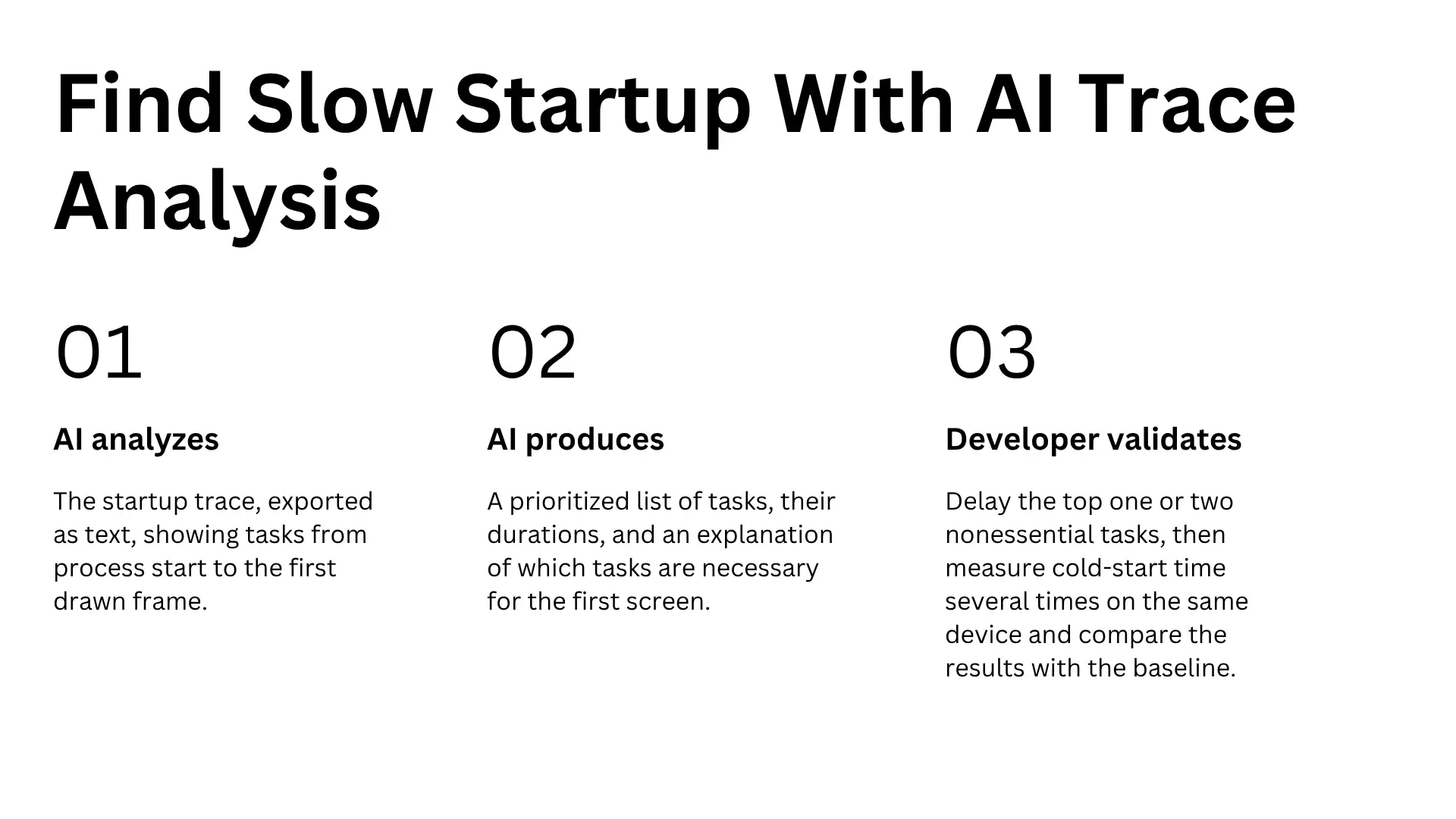
- AI analyzes: The startup trace, exported as text, showing tasks from process start to the first drawn frame.
- AI produces: A prioritized list of tasks, their durations, and an explanation of which tasks are necessary for the first screen.
- Developer validates: Delay the top one or two nonessential tasks, then measure cold-start time several times on the same device and compare the results with the baseline.
Slow startup often happens because too much work takes place before the first screen appears. This may include initializing SDKs, opening databases, or running analytics and configuration calls simultaneously. If the first screen doesn’t need a task, consider delaying it until later.
Fix Slow Screens and Rendering With AI
- AI analyzes: The profiler’s frame data for the slow screen, along with the code responsible for building it.
- AI produces: The likely main-thread operation causing dropped frames, its code location, and one or two possible fixes, such as pagination or image resizing.
- Developer validates: Apply one fix at a time, run the profiler again on the same screen, and confirm that the change reduces dropped frames.
Stuttering often results from work performed on the main thread, such as parsing a large response, decoding full-size images, or building a long list all at once. Focus on dropped frames and hangs on the screens users interact with most.
Cut Network Calls and App Size With AI
- AI analyzes: The request log for a specific screen, such as checkout, with personal data removed.
- AI produces: A table of endpoints showing how often each one was called and the size of each response, highlighting repeated calls and oversized payloads.
- Developer validates: Confirm repeated calls in the network inspector, fix the underlying cause, and compare request counts and loading times before and after the change.
A screen that makes too many small requests, or downloads oversized images, can feel slow even when the application code is otherwise well written. The backend matters just as much. A well-planned cloud app development setup with caching and sensible scaling can help keep response times consistent as the user base grows.
Plan Real-Device Tests With AI
- AI analyzes: Your analytics data, broken down by device model, OS version, and network type.
- AI produces: A prioritized list of device and scenario combinations to test, along with draft test cases for slow networks, low battery, and returning to the app from the background.
- Developer validates: QA reviews the recommendations, adds any important devices the data may have missed, and runs the tests on physical phones.
Emulators can’t fully reproduce everything that happens on real devices, including heat, low memory, and unreliable network connections. Test on a mix of older, mid-range, and recent phones. The mobile app testing checklist covers the broader pre-launch QA process, while this section focuses specifically on performance.
Catch Memory Leaks and Crashes Early With AI
- AI analyzes: Memory leak reports and crash stack traces from internal builds.
- AI produces: Groups of similar reports, a suspected cause for each group, and the number of reports in each cluster.
- Developer validates: Reproduce the most significant issue on a device and confirm that the fix resolves it. AI can sometimes identify the wrong line of code as the cause.
A memory leak occurs when an app retains memory it no longer needs. Over time, memory usage can increase until the operating system closes the app. Run long sessions deliberately and review crash logs from internal builds to catch these problems before release.
How AI Helps You Release Without Risk
Set up AI-assisted alerts that compare a new release with the previous version. This helps flag unusual increases in crashes, ANRs, or startup times early. Before making the go-or-no-go decision, ask AI to summarize the release data and highlight what has changed. A person should still make the final decision.
Pair this with a staged rollout. Google Play supports staged rollouts, while Apple offers phased releases for app updates. This allows the new build to reach a portion of users first while the team monitors performance.
Decide before release what you’ll watch and for how long. A fixed window, say the first day or two, with firm limits on crash rate, ANR rate and startup time, keeps the go/no-go call from turning into a debate.
Automated builds and release checks also make this process easier to repeat. The role of DevOps in mobile app development explains how these pipelines support a more consistent release process.
What to Track After Launch With AI
Launch is when real data starts arriving, and it rarely matches your test results. There’s more of it than any team can read by hand, which is where AI earns its place.
Find Slow Patterns in Real-User Data
Ask AI to break down performance data by device model, OS version, network type, and region. This helps identify where slowdowns are concentrated. A problem affecting one older device family may require a different solution from an issue affecting users across all devices.
Lab tests show what could go wrong, while real-user monitoring reveals what is actually happening. Tools such as Firebase Performance Monitoring and Crashlytics collect performance and crash information from live app usage.
Apps that stream video, such as the Shot Play video streaming app, are a good example of where this matters. Playback, buffering, and screen responsiveness all depend on consistent performance across different devices and network conditions.
Group Crashes and ANRs With AI
Give AI your crash stack traces and ask it to group similar reports, identify the likely cause of each group, and rank the groups by the number of users affected.
Thousands of crash reports can sometimes be traced back to a relatively small number of underlying causes. Google’s Android vitals guidance also emphasizes prioritizing the largest crash and ANR clusters first, helping teams focus on issues affecting the most users.
Read Reviews for Performance Complaints With AI
Export recent app reviews and ask AI to identify those mentioning lag, crashes, freezing, or battery drain. It can categorize the complaints, count them by theme, and compare them with release dates.
Users rarely describe a problem as a “regression in startup time.” Instead, they might write that the app takes forever to open or freezes during checkout. These comments can reveal problems that haven’t yet become obvious in performance dashboards.
A Repeatable Post-Launch Workflow
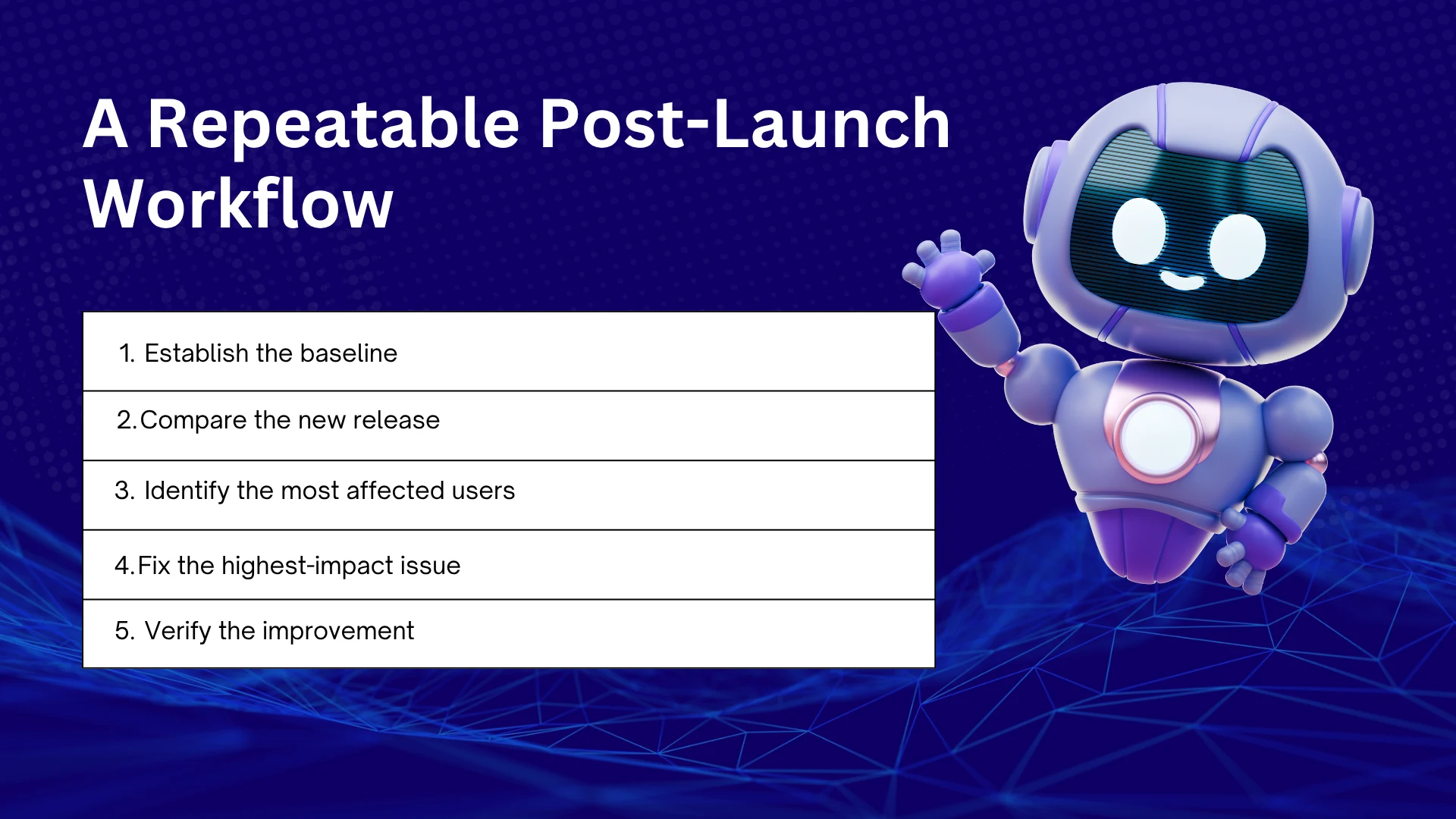
Follow the same five steps after every release so that improvements are measured rather than guessed.
- Establish the baseline. Record startup time, crash rate, ANR rate, and key screen loading times for the current version using both test devices and real-user data.
- Compare the new release. Once the rollout begins, compare the same metrics against the baseline and previous release. Ask AI to summarize what changed and by how much.
- Identify the most affected users. Ask AI to break down the changes by device model, OS version, network type, and region, then rank the groups by the number of users affected.
- Fix the highest-impact issue. Start with the largest crash cluster or the user group experiencing the biggest problem, rather than focusing only on the loudest complaint. A developer reproduces the issue, fixes it, and releases the change through a staged rollout.
- Verify the improvement. Measure performance again on the same devices and through real-user data. If the results improve, update the baseline. If they don’t, revisit the diagnosis and return to step three.
AI can help generate a prioritized list of potential fixes from these results, but the team decides which changes should go into the next release.
Android vs. iOS: What’s Different
The performance goals are similar on both platforms, but the data comes from different sources.
Android. Use device-level data from Android vitals in Google Play Console and ask AI to sort issues by device model. This can help identify the devices responsible for a large share of performance problems. Android vitals reports crash and ANR rates, and Android runs on a wide variety of phones, making device-level analysis especially important.
iOS. Collect Apple’s MetricKit reports and ask AI to group hangs by call stack so recurring causes become easier to identify. MetricKit provides launch, hang, and animation hitch metrics from real devices, along with diagnostic information such as call stacks for crashes and hangs. Since the range of Apple devices is generally narrower, OS version is also an important factor to examine.
If your app runs on both platforms, track the same core metrics and compare the results side by side. A performance gap between Android and iOS may point to a platform-specific issue.
Common Mistakes When Using AI for App Performance
- Sharing logs containing personal information with a public AI tool.
- Trusting AI recommendations without testing them on a real device.
- Providing incomplete data, such as a single crash log instead of a week’s worth of reports.
- Asking vague questions without specifying the app, devices, and performance goals.
- Approving AI-generated code changes without developer review.
- Skipping real-device tests because AI suggests that the code looks correct.
- Ignoring performance data after launch.
AI can speed up analysis, but its conclusions can be wrong, and logs may contain sensitive user information. Always validate recommendations and remove personal data before sharing logs. You should also address mobile app development mistakes that can create performance problems much earlier in the planning process.
Conclusion
To improve mobile app performance with AI, set your limits early, test on real devices, release in stages and keep watching real-user data after launch. Apps rarely lose users to one big failure. They lose them to slow starts, small freezes and crashes on phones nobody tested, and each of those is cheaper to fix early.
AI makes every step faster by reading traces, grouping crashes and surfacing review themes in minutes. But it can be wrong, so developers still reproduce each problem, apply the fix and confirm on a real device that the numbers moved.
If you want an experienced team to help build or improve a fast, stable app, from planning through post-launch support, CodeStore can help.